Using info_overlay (Setting up indicator strips).
2 Posts
Posted Feb 21, 2010
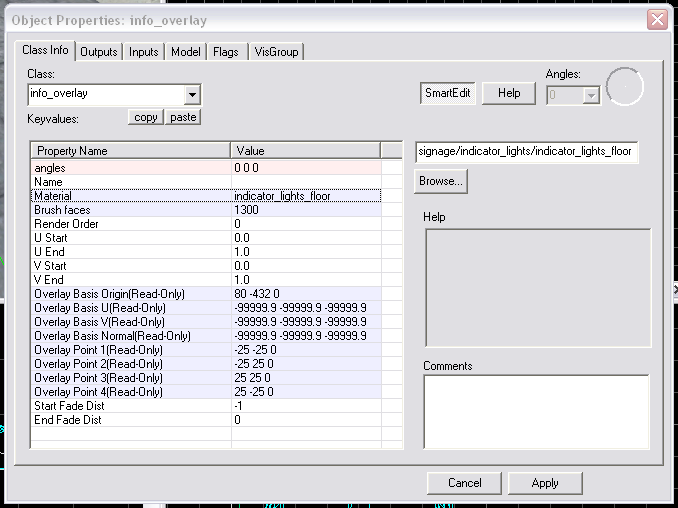
Hi. I am working on a map for a test chamber and I am trying to setup the indicator strips for the doors. But, I can't work out how to get the info_overlay to work. I've placed the info_overlay flush to the floor and selected the floor surface in "Brush Faces". I've set the Material to "signage/indicator_lights/indicator_lights_floor". But it won't appear! Not matter what settings I put into U/V / Start/End. I've attached a screen-shot of the overlay properties window.
Please tell me what I'm doing wrong.
P.s
I'm following the tutorial on the wiki section.
Images
1

Registered users don’t see ads!
Register now!
2 Posts
Posted Feb 21, 2010
Replied
8 hours
later
Ok. I have worked this out, almost. When I insert a new overlay, I have to save and close the map then re-open it. Then the overlay appears.
I'm guessing this a bug in the SDK.
806 Posts
Posted Feb 22, 2010
Replied
19 hours
later
Did you use the overlay tool, or did you just place an info_overlay in the map like any other entity? I was able to reproduce your situation by doing the latter; it didn't show up until I saved and re-opened the map, just as you said.
The correct way to add overlays is by using the overlay tool: first select the texture you want to use (make sure it's overlay compatible), then press shift + O or click on the overlay button. (Left side of the window, third icon from the bottom. It shows a brick wall with a green patch on it.)
Then click on a brush surface in your 3D view. The new overlay will be oriented to match the surface you clicked and it will have its "brush faces" set to the correct value automatically. You can then use the select tool to move it around and/or resize it.