Lasers look different in-game vs custom maps?

Avatar
Zaiks
15 Posts
Posted May 17, 2011
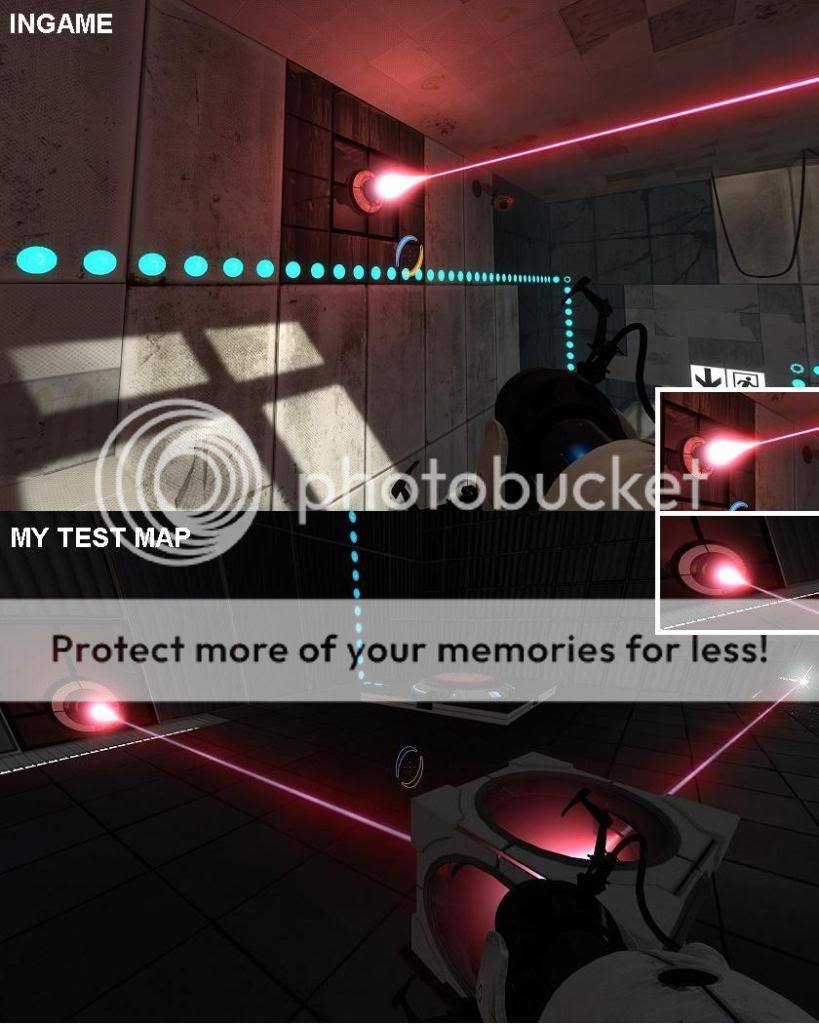
Hello. I'm new on these forums, but I'm familiar with the hammer editor. I'm currently playing around with the new entities in the Portal 2 Authoring Tools to see how they work before I devote myself to any projects, and I can't seem to get the laser beams to look right. Here's an example:
Lasers
(keep in mind the bottom picture is close-up)

The lasers on the official maps just seem a lot brighter than they do when I make them. The sprite at the emitter is also larger and the beam is thicker. I've tried with different lighting in my maps but that doesn't help. There really should be some keyvalues to change this. Any ideas on how to make my lasers look more like those in the game?

Also a small unrelated thing I need help with; I haven't gone in depth with the logic / math entities in hammer yet so I need some advice on how to make a simple if-check. I just want a button to toggle a light-bridge on and off but I didn't find any "toggle" output for the prop_wall_projector, so I need something like this:

OnButtonPress
if(bridge is on){turn off bridge}
else{turn on bridge}
(screenshot)
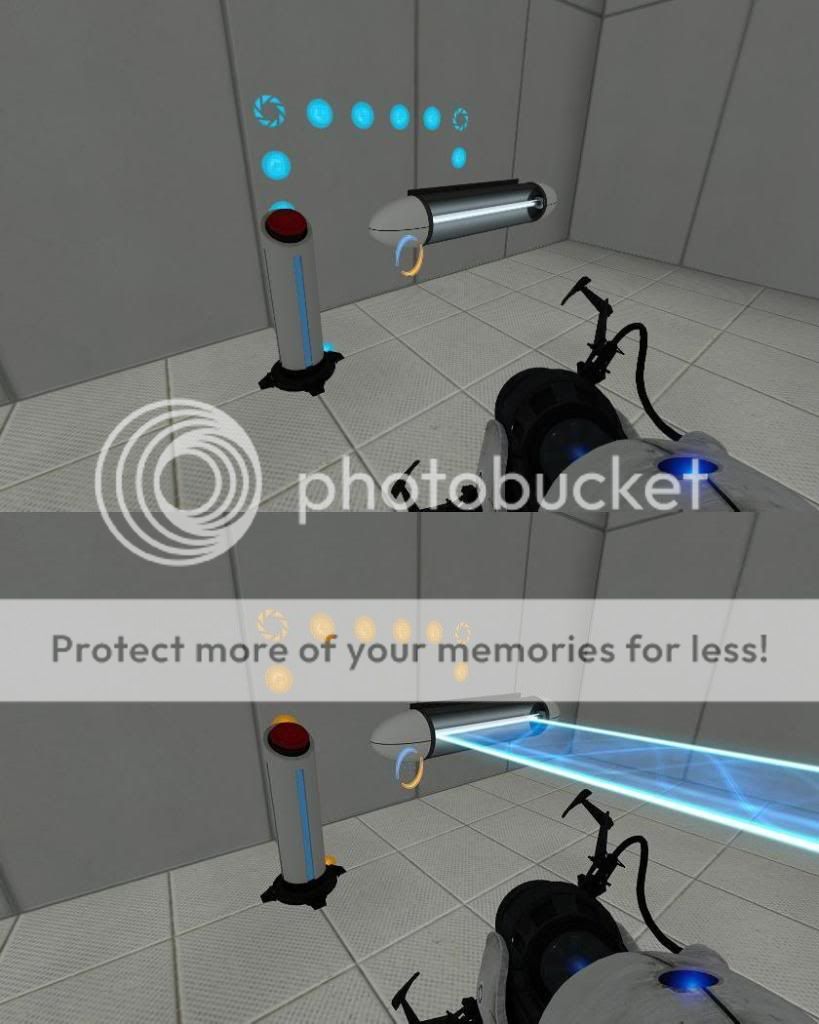
If someone could give me a simple example of how to set this up (which entities I need etc) I'd much appreciate it.

EDIT: Both problems solved, thanks for helping me out guys.

Advertisement
Registered users don’t see ads! Register now!
Avatar
RJK 616
56 Posts
Posted May 17, 2011
Replied 27 minutes later
I find aligning a Red light next to emitter that turns on depending on if the lazer is active does the trick
Avatar
Zaiks
15 Posts
Posted May 17, 2011
Replied 27 minutes later
Thanks. I already tried that, and it does give a nice red tint. I still need help getting the actual beam to appear thicker though, and somehow increase the size of the sprite.

I'm guessing there's some trick Valve is using... I bet if I decompiled an official map and compiled it again, it would look just as bad as a custom made map. sigh

Avatar
Sliipperi
30 Posts
Posted May 17, 2011
Replied 18 minutes later
There are good example maps Valve has provided us. They're in steamapps\common\portal2\sdk_content\maps
Start sp_a4_laser_catapult in Hammer and look how they did the laserwork.
Avatar
Aldéz
221 Posts
Posted May 17, 2011
Replied 25 minutes later
Maybe Valve uses color correction or some HDR settings in their maps which makes the beam brighter? For the light bridge, I think logic_branch can solve your problem. Don't remember the details about it, but I'm sure there's an article in the VDC wiki.
Avatar
Zaiks
15 Posts
Posted May 17, 2011
Replied 1 hour later
Ah thanks a bunch... figures all I had to do was compile the map in HDR facepalm.
One problem solved =).

EDIT: I'll check that out Ald?z thanks for the reference.
EDIT#2: I got it working with the logic_branch entity, thanks again Ald?z.
Avatar
msleeper
4,136 Posts
Admin
Posted May 17, 2011
Replied 4 hours later
It looks like your map has no lighting, and so I'm assuming it has no cubemaps. You will need both of these for the various effects to show properly.
Advertisement
Registered users don’t see ads! Register now!
Avatar
Zaiks
15 Posts
Posted May 19, 2011
Replied 1 day later
It does have lighting and cubemaps, it's just supposed to be a very dark map.:wink:
The first screenshot is only lit by a blue and a red light with very low brightness plus a lot of func_instance texture lights. For the second screenshot (different room, same map) I just put a few light entities at default brightness 200, so that's why it looks too bright like it has no light at all. I don't think I'll be using the map for anything other than testing so it's fine the way it is.